Serial console
Applies to SynapseOS builds from 2026-10-09 (20261009-141152 and later). See What changed.
115200 baud, 8 data bits, no parity, 1 stop bit. Everything else is finding the port.
A Cerebrum Edge has no BMC; its console is a serial port behind a USB connector on the unit. Connect it to a laptop with the USB cable supplied and the console appears as a serial device on the laptop. It shows the whole boot, from firmware to login prompt, and works whatever state the system is in, so it is the way in when the network is not. The unit's password, where one is set, works here; see Logging in.
The USB-to-serial converter in the cable is a Prolific PL2303. Linux and current Windows have its driver built in; macOS needs it installed.
Windows
With the cable connected and the unit powered on, open Device Manager and expand Ports (COM & LPT): the unit is the new USB Serial Port, with a COM number you will need. In this example it is COM9.
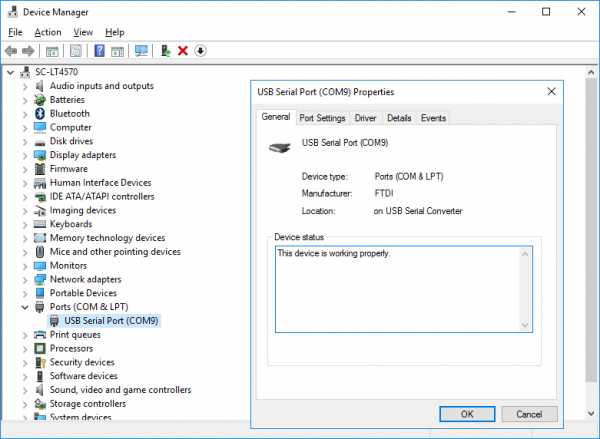
The screenshot shows a port whose manufacturer reads FTDI; a Cerebrum Edge's cable identifies as a Prolific PL2303 and appears in the same place, under the same heading.
Then open PuTTY, choose
Serial as the connection type, enter that COM port as the serial line and 115200 as
the speed, and open the session.
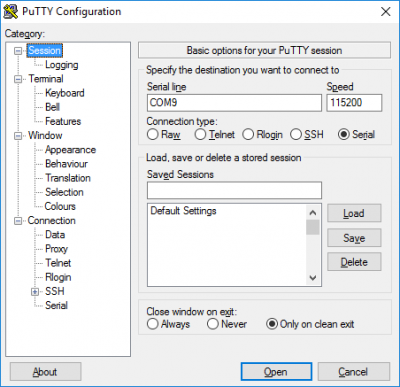
If Windows does not recognise the cable, install the PL2303 driver from Prolific's site, then unplug and reconnect it.
Linux
The driver is in the kernel. After connecting the cable, find the device the converter was given:
dmesg | grep -i tty
It appears as /dev/ttyUSB0 when it is the only USB serial device; the examples below use
that name, so check yours. Then, with either program:
sudo tio -b 115200 /dev/ttyUSB0        # leave with Ctrl+t, then q
sudo minicom -b 115200 -D /dev/ttyUSB0 # leave with Ctrl+a, then x
sudo is needed unless your user is in the group that owns the device (dialout on
most distributions).
macOS
Install the PL2303 Serial driver
from the App Store first; without it the cable does not appear at all. Then find the
device; with that driver it is named after the chip, not usbserial:
ls -l /dev/tty.* # /dev/tty.PL2303G-USBtoUARTnnn, or tty.PL2303-… on older cables
and connect with screen, which macOS ships, or with tio from Homebrew:
screen /dev/tty.PL2303G-USBtoUARTnnn 115200   # leave with Ctrl+a, then k, then y
tio -b 115200 /dev/tty.PL2303G-USBtoUARTnnn   # leave with Ctrl+t, then q
Use the name ls showed. A graphical terminal such as ZTerm works as well: set the
connection to 115200 8 N 1 with local echo off.
If nothing appears
- Press Enter once: the console only prints when something happens, and an idle unit at a login prompt is silent.
- Check the speed. Any setting other than 115200 shows nothing, or unreadable characters.
- Check the port. A laptop with another serial device attached gets a different number or name for this one.
- On a unit that is powering on, the firmware's output comes first, before SynapseOS prints anything. If that never appears, the problem is the cable, the driver or the port, not the unit.